How to Create a Custom Room in Free Fire: Step-by-Step Guide with Unlimited Gloo Walls
May 5, 2026
11 min read
If you want to practice with your squad, host a 1v1, or run your own mini-tournament without random players dropping in, the custom room feature is exactly what you need. It gives you full control over the match environment, from the map and mode to the zone speed and loot settings.
Custom rooms also give you the ability to spam gloo walls freely for practice, which is something you simply cannot do in ranked or classic mode, where supply is limited. This guide walks you through creating a custom room from scratch, getting more gloo walls without using hacks, and setting up the best room configurations for serious practice.
Requirements to Create a Custom Room
Before you can create a custom room, you need a Custom Room Card. This is the one prerequisite that players often overlook. Without it, the create button stays greyed out, and you cannot proceed.
Compete on ZP Battle Zone
Apply what you just learned
Join 35,000+ Pakistani players competing in live Free Fire tournaments every week. Verified results, fair play, organized competition.
You can get Custom Room Cards in a few ways. The most straightforward method is purchasing one directly from the in-game store for 100 diamonds. If you are looking for a free route, participating in Guild Tournaments is your best option. Guilds that collect enough Dog Tags during the tournament period can unlock a room card as a reward. Garena also occasionally distributes time-limited room cards through in-game events, so check your event tab regularly.
Beyond the card, you need an updated version of Free Fire or Free Fire MAX and a stable internet connection. For Classic mode custom rooms, you also need a minimum of ten players in the lobby before you can start the match.
Step-by-Step: How to Create a Custom Room in Free Fire
Step 1: Open the Mode Selection Screen
From the main lobby, tap the mode change button located at the top right corner of your screen. This opens a full list of available game modes. You will see options for Classic, Ranked, Clash Squad, and others listed here.
Step 2: Choose Custom and Tap Create
Scroll down and tap on the Custom option. This opens the custom room interface, where you can either join an existing room or create your own. Tap the Create button to open the room creation settings. This is where your room card gets consumed, so make sure you have one ready.
Step 3: Configure Basic Room Details
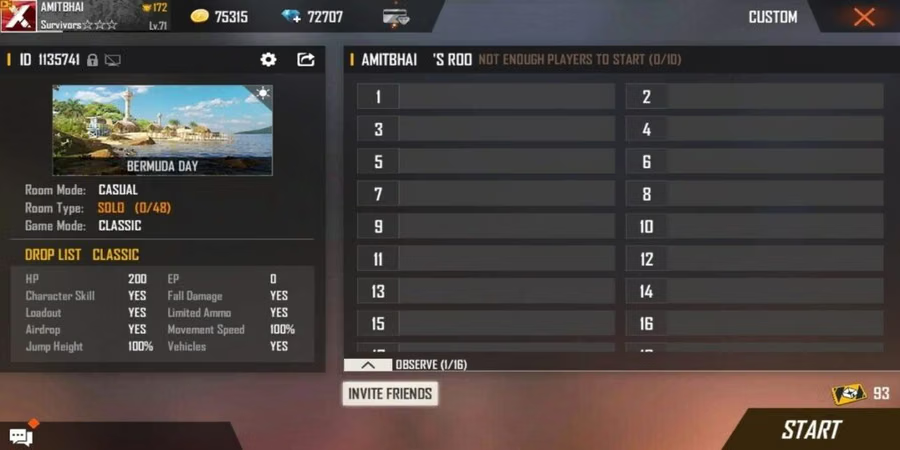
Set a name for your room. You can also add a password here if you want a private room that only invited players can enter. If you leave the password blank, the room becomes public, and anyone can search for and join it using the Room ID.
Select whether you are creating a Battle Royale room or a Clash Squad room. Both have separate settings and minimum player requirements. The Room ID is automatically generated once you confirm, and you share this with whoever you want to invite.
Step 4: Choose Your Map and Game Mode
Select the map you want to play on. Options include Bermuda, Purgatory, Kalahari, Alpine, and others, depending on the current update. Each map plays differently, so pick based on what your squad wants to practice.
Under the game tab, you will also find preset modes such as sniper-only matches, grenade-only modes, and other fun configurations. These presets are a quick way to set up themed custom matches without adjusting every setting individually.
Step 5: Advanced Custom Room Settings
This is the section most players skip over, but it is where the real value of custom rooms lives. You can adjust player HP, zone shrink speed, item drop rates, ammo availability, revive rules, and starting equipment. Each of these settings significantly changes how the match plays out.
For a 1v1 practice match, set HP to maximum, the zone to a smaller area, and drop rates to high so both players stay well supplied throughout the fight. For squad scrims, keep settings closer to the standard ranked experience so your team builds realistic game sense. For a fun mode, experiment with increased zone speed or grenades-only loadouts.
Step 6: Create the Room and Invite Players
Once you are satisfied with the settings, tap Confirm to create the room. Your Room ID and password will now be visible. Share the Room ID and password with your friends via chat, Discord, or any other platform you use to coordinate.
For Classic mode rooms, wait for at least ten players to join before starting. For Clash Squad custom rooms, you need a minimum of two players. Once your lobby is ready, tap Start, and the match begins on your terms.
How to Get Unlimited Gloo Walls in Custom Rooms (No Hacks)
Important: Avoid MODs and Hacks
Before getting into the legit methods, this needs to be said clearly. Using MOD APKs or third-party tools to get unlimited gloo walls violates Garena’s terms of service. This includes any modified version of the game that unlocks unlimited items or removes restrictions. Players caught using these tools face temporary or permanent account bans, and the risk is simply not worth it.
Everything in this section is 100 percent legit, works within the official game, and will not put your account at risk.
Training Mode: The Easiest Way to Spam Gloo Walls
Training Mode is your best tool for unlimited gloo wall practice. When you enter Training Mode from the main menu, gloo wall grenades are available without any supply limits. You can place walls repeatedly, practice placement angles, work on your deployment speed, and experiment with formations without ever running out.
This is where all serious gloo wall mechanics should be drilled. Before you try anything in ranked matches, spend dedicated sessions in Training Mode building muscle memory for quick wall placement, triangle cover setups, and wall-peeking techniques.
Custom Room Settings That Maximize Gloo Wall Supply
Inside a custom room, you can set the item drop rate to the highest available level. When loot rates are maxed out, gloo wall grenades spawn far more frequently across the map, meaning players will almost never run out during a match. Combine this with a smaller zone and reduced player count, and you essentially have a controlled environment where gloo walls are plentiful throughout.
Some fun mode presets within custom rooms also come with modified item spawns that naturally increase utility availability. If your goal is purely gloo wall practice and not realistic scrim conditions, these presets offer an easy shortcut to having walls available constantly.
Mr. Waggor: Your In-Game Gloo Wall Generator
Mr. Waggor is the most useful pet in the game for players who burn through gloo walls quickly. His Smooth Gloo ability automatically generates a gloo wall grenade every two minutes whenever your inventory drops below two walls. In Clash Squad mode specifically, he produces gloo wall grenades on a regular timer regardless of your current supply.
When you equip Mr. Waggor and enter a custom room with high loot settings, you combine two sources of gloo wall supply simultaneously. The map loot gives you an abundance of walls early, and Mr. Waggor keeps restocking you throughout the match, so you are never caught without cover. For players focused on mastering gloo wall mechanics, this combination is the most effective setup available without using any hacks.
Best Custom Room Presets for Gloo Wall Practice
1v1 Gloo Wall Movement Practice Room
For a focused 1v1 practice session, set your custom room to a small zone size, maximum HP for both players, and a high item drop rate. Choose Bermuda or Kalahari for the map since both have open areas where gloo wall movement becomes the deciding factor in a fight.
In these sessions, the goal is not to win by aim alone. Focus on deploying walls quickly under pressure, using the peek-and-shoot technique around wall edges, and practicing crossfire setups where you and a partner take opposing angles behind walls. This environment gives you the repetition needed to make gloo wall mechanics instinctive in actual ranked matches.
Squad Scrim Room with High Gloo Wall Availability
For team scrims, keep the general settings close to ranked conditions but increase the item drop rate to ensure every player has consistent gloo wall access throughout the match. The goal of a scrim is to practice decision-making and coordination, and running out of utility too early interrupts that practice unfairly.
Use these sessions specifically to work on team cover during rotations. Practice placing walls to protect a knocked teammate, setting up forward cover for a push, and deploying walls as a team to cross open ground safely. These are skills that make a real difference in final-zone situations, and they only develop through deliberate repetition in controlled custom environments.
Troubleshooting: Custom Room Not Working or Gloo Walls Not Showing
The most common reason a custom room cannot be created is a missing or expired room card. Check your inventory under the items tab before attempting to create a room. If your card is time-limited, verify it has not expired since activation.
If the Create button is greyed out despite having a card, make sure your game is fully updated. Older versions of Free Fire can cause UI issues with the custom room menu. Restarting the game after an update resolves this in most cases.
If gloo walls are not appearing in your custom room at the frequency you expect, check your loot rate setting in the advanced options. A low or default loot setting will not produce the volume of gloo walls needed for dedicated practice. Set it to the highest available option and reconfirm your room settings before starting.
Emulator players using BlueStacks or LDPlayer can join custom rooms in the current version of Free Fire. However, the room host needs to ensure the Block Emulators option is disabled in the lobby settings. This setting can be found inside the lobby itself before the match starts. If you are still facing issues after checking all of this, contact Garena support through the official in-game help center.
Frequently Asked Questions: Custom Rooms and Gloo Walls
Do I need diamonds for every custom room?
Not necessarily. If you purchase a room card with 100 diamonds from the store, each card creates one room session. However, you can earn free room cards through Guild Tournaments and in-game events without spending diamonds. Time-limited room cards from events allow unlimited room creation within their active period.
Can I really get unlimited gloo walls in ranked matches?
No. In ranked mode, gloo wall supply is limited to what you find on the map and what Mr. Waggor generates over time. The unlimited gloo wall experience exists only in Training Mode and in custom rooms with boosted loot settings. Mr. Waggor provides a consistent supplemental supply in ranked play, but it is not infinite. Plan your usage accordingly.
Why did my custom room close automatically?
Custom rooms close automatically if no match is started within a set time after creation, or if the host exits the lobby. Time-limited room cards also deactivate if their duration expires before you use them. To avoid this, coordinate with your squad before creating the room so everyone is ready to join immediately.
Can emulator players join custom rooms?
Yes. Emulator players on BlueStacks or LDPlayer can join custom rooms as long as the room host disables the Block Emulators option in the lobby settings. This option is found in the settings panel within the waiting lobby before the match starts. Without disabling it, emulator players will be unable to enter the room.
Final Checklist: Custom Room Setup in 5 Steps
Run through this before your next session:
▸Confirm you have a Custom Room Card in your inventory before opening the mode menu.
▸Open the mode selection screen, tap Custom, then tap Create.
▸Set your room name, password, map, mode, and advanced settings, including loot rate.
▸Share the Room ID and password with your squad and wait for the minimum player count.
▸Equip Mr. Waggor before entering any session focused on gloo wall practice.
Custom rooms are one of the most underused tools in Free Fire for players who want to actually improve. The ability to control every variable of a match, from loot and zone speed to HP and revive rules, means every session can be built around a specific skill you want to develop. Use it consistently, and the improvement in your ranked performance will be noticeable within a few weeks.
Want to take your skills further? Check out our guides on advanced gloo wall placement techniques, pro sensitivity settings for faster wall deployment, and 1v1 training drills that will sharpen every aspect of your game.