Free Fire Audio Guide: Best Settings to Hear Every Footstep and Reload
May 6, 2026
11 min read
Most players focus entirely on aim when they want to improve in Free Fire. The players who are actually climbing ranks are the ones who hear the enemy first. Footsteps, reloads, and the direction a shot came from are all pieces of information your audio is constantly delivering to you, and if your settings are wrong, you are missing all of it.
This guide covers everything you need. The exact in-game sliders to set, how to optimize your phone or device audio, why earphones beat speakers for competitive play, how to test if your settings are actually working, and what to do when footsteps are still not coming through clearly.
Understanding Free Fire’s Audio System
Compete on ZP Battle Zone
Apply what you just learned
Join 35,000+ Pakistani players competing in live Free Fire tournaments every week. Verified results, fair play, organized competition.
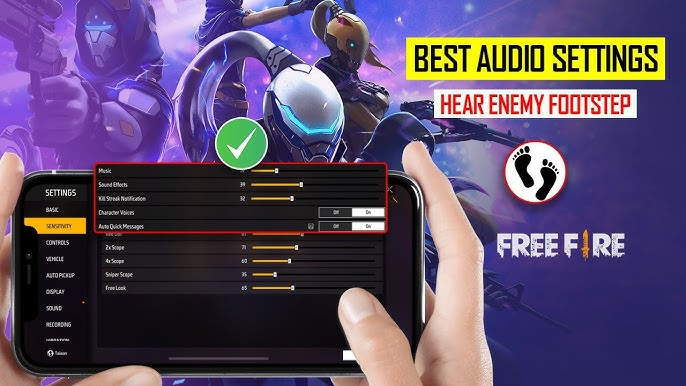
Free Fire gives you four main audio sliders in the settings menu: Master Volume, Music Volume, Sound Effects Volume, and Voice Chat Volume. Each one controls a specific layer of the game’s audio, and most players have them set incorrectly from the start.
Master Volume is the overall ceiling for all sounds. Setting it to 100 lets every other slider reach its full potential. If the Master is low, no amount of adjustment to the other sliders will give you full clarity.
Music Volume controls the background score that plays during matches. This is the easiest slider to reduce. Background music adds nothing to your competitive awareness and actively masks subtle sounds like crouch-walking and distant footsteps. Most serious players set this to zero or keep it very low.
Sound Effects Volume is the most important slider in the game. This controls footsteps, gunshots, reloads, grenade pins, vehicle engines, and every other sound that tells you where an enemy is and what they are doing. This is the slider you want as high as possible.
Voice Chat Volume controls your squad communications. Keeping this at a comfortable level is important, but setting it too high causes team chatter to overlap with in-game sound cues, which is one of the most common reasons players miss nearby footsteps during squad play.
Best In-Game Audio Settings for Hearing Footsteps and Reloads
Recommended Settings to Start With
Set your Master Volume to 100. This is non-negotiable. Every other slider depends on this being at full. Music Volume should go down to 0 or a maximum of 10. You gain nothing competitively from background music and lose a lot of audio clarity by keeping it high.
Sound Effects Volume should be set between 85 and 100. Setting it near maximum ensures that distant footsteps, crouching movements, and quiet reloads are all audible rather than buried beneath other sounds. Starting at 95 is a good baseline based on current pro-level configurations.
Voice Chat Volume works best between 35 and 50 for squad play. This keeps your teammates audible for callouts while preventing their voices from drowning out environmental sounds. If you are playing solo, you can set this lower since you only need it for listening, not communicating.
Surround Sound and Audio Mode Settings
Free Fire supports multiple audio output modes, including standard stereo, 5.1 surround, and 7.1 surround. For mobile players using earphones, the standard stereo or two-channel setting typically delivers the clearest directional audio. Stereo gives your brain clean left and right channel separation, which is what allows you to tell whether a player is approaching from your left flank or your right.
Surround sound options can expand the sense of space, but stacking multiple spatial processing layers on a mobile device can sometimes muddy the directional cues instead of sharpening them. Test both settings in a custom room with a friend walking around you from different positions, and go with whichever gives you the most precise sense of direction.
Vibration as a Backup Footstep Detector
Some players enable vibration as a secondary layer of footstep awareness, particularly in close-range situations. When an enemy is directly below you in a building or approaching from just outside a doorway, a subtle vibration can reinforce what you are hearing through your earphones.
This is most useful when you are using low-end earphones that do not reproduce quiet sounds as crisply as higher-quality audio gear. If you are using a gaming headset with good sensitivity, vibration adds less value and can sometimes be distracting during fights. Try it in custom rooms and decide based on your own setup.
Device and Headset Settings That Boost Footstep Audio
Phone Sound Settings on Android and iOS
Your device volume must be at maximum before your in-game settings can make any difference. This sounds obvious, but a significant number of players have their system media volume set below maximum and wonder why footsteps sound distant even with effects set high. Set your device media volume to 100 percent before you open Free Fire.
If your phone has a built-in equalizer or sound enhancer, tune it toward mid and high frequency boosts rather than bass enhancement. Footsteps, reload clicks, and movement sounds all live in the mid to upper frequency range. Heavy bass settings boost explosions and gunfire, which can actively mask the quieter sounds you are trying to hear.
Make sure mono audio is turned off on your device. Mono audio collapses all sound into a single channel, which completely removes your ability to tell whether an enemy is to your left or right. Stereo is essential for directional awareness, which is one of the most valuable pieces of information audio gives you during a match.
Why Earphones Beat Loudspeakers for Competitive Play
Phone speakers send sound in one direction, away from your ears, and they cannot reproduce the subtle high-frequency details that make footsteps distinguishable. Even a basic pair of in-ear earphones delivers sound directly into both ears simultaneously, which preserves the left-right separation that tells you where an enemy is coming from.
Wired earphones are more reliable than Bluetooth for competitive play. Bluetooth audio introduces a small but real delay between the game generating a sound and you actually hearing it. In a game where you are reacting to a reload sound to time a push, that delay costs you the window you needed. If you do use Bluetooth, ensure your connection is stable, and your audio codec is set to the highest quality your device and earphones support.
Gaming headsets with larger drivers and dedicated gaming modes provide an additional advantage for hearing quiet sounds at a distance. If you are serious about ranked play, investing in a gaming headset with a flat or mid-boosted sound profile will give you noticeably better footstep clarity than consumer earphones tuned for music bass.
Advanced Tweaks: Pro Sound Setups and Testing
Pro Audio Layout Patterns
Looking at how serious players and content creators in the current Free Fire meta configure their audio, the consistent pattern is effects at or near maximum, music at zero or close to it, and voice chat balanced low enough not to interfere with game sounds. This is not a coincidence. It reflects the actual priority of sounds in a competitive match.
Treat these as a starting point, not a fixed prescription. Your device, your earphones, and your hearing all affect how you experience the same slider values. The goal is to reach a configuration where quiet footsteps are clearly audible and distant reloads are distinguishable, not just to match a specific number.
How to Test If You Can Hear Footsteps Properly
The best way to verify your settings is a simple drill in a custom room or training mode. Have a teammate walk, crouch-walk, sprint, and reload at different distances around you while you keep your eyes closed or face away. A properly tuned setup should let you identify which direction they are coming from, roughly how close they are, and whether they are moving slowly or running.
Make one change at a time, then test again. Adjusting multiple sliders simultaneously makes it impossible to know what actually improved your audio. Change the effects volume, test, then address device settings, test, then try different earphone modes if applicable. This methodical approach gets you to the best configuration for your specific setup much faster than random adjustments.
Common Audio Problems and How to Fix Them
Footsteps Too Low or Missing
The first thing to check is whether a recent game update reset your audio settings. Free Fire updates occasionally revert in-game settings to their defaults, including audio sliders. If footsteps suddenly disappeared after an update, go into settings and reapply your preferred values before assuming there is a larger problem.
If the settings look correct but footsteps are still inaudible, check your device volume, verify that mono audio is off, and make sure no system-level audio feature like a noise cancellation mode is actively filtering sounds. Some phone gaming modes also apply audio processing that can suppress quiet sounds as a battery-saving measure.
Voice Chat and Game Sound Clashing
When voice chat volume is set too high, team callouts and background noise from squad members’ microphones sit on top of the same frequency range as footsteps. The result is that you hear your squad but miss the enemy walking up behind you. Lowering voice chat volume to around 40 while keeping effects high solves this for most players.
Background apps are another common culprit. If Discord, WhatsApp, or any other audio application is running while you play, it competes with Free Fire for audio output. Close all background audio apps before starting a ranked session to ensure Free Fire has full control of your audio pipeline.
Crackling, Delays, or Audio Cutting Out
If your audio is crackling or cutting in and out, start by checking your earphone connection. A slightly loose wired connection creates intermittent contact that causes exactly this symptom. Try a different audio output and see if the problem persists before assuming it is a game issue.
Bluetooth audio cutting out is usually caused by connection interference, distance from your device, or a low battery in the earphones. Switch to a wired connection for competitive sessions. If crackling happens even with wired earphones, restart the game, clear the app cache through your device settings, and check if a known audio bug was introduced in the latest patch through the official Free Fire update notes.
Gameplay Tips to Use Audio Like a Pro
Reading Footsteps and Reload Sounds in Fights
Sprint footsteps are louder and faster than walking footsteps. Crouch-walking is the quietest movement state and the one most commonly used by players sneaking up on a position. If you stop hearing footsteps after previously hearing an enemy moving, they have either stopped completely or switched to crouch-walk. Both options tell you they are close and preparing to push.
The reload sound is one of the most valuable audio cues in the game. A full weapon reload takes several seconds, and during that window, the enemy cannot fire. When you hear a reload from cover nearby, that is your signal to push. Timing a rush to the end of an enemy’s reload cycle is how pro players force fights they know they will win.
Combining Audio with Movement and Sensitivity
Good audio only converts into wins when your sensitivity and movement mechanics let you react fast enough once you have the information. If your sensitivity is set correctly, the moment you hear a footstep to your left, you can snap your aim there in under a second. If your sensitivity is too high or too low, that audio advantage is wasted because your reaction either overshoots or takes too long.
Practice the habit of peeking after audio confirms a direction rather than random peeking. Audio tells you where the enemy is. Your movement and aim convert that information into a kill. Players who train this connection between what they hear and how they respond develop faster, more accurate game sense than players who rely on sight alone.
Quick Checklist: Audio Setup Before Every Ranked Session
Run through this before you queue:
▸Device media volume at maximum before opening the game.
▸Master Volume at 100 in Free Fire audio settings.
▸Music Volume at 0 or no higher than 10.
▸Sound Effects Volume between 85 and 100.
▸Voice Chat Volume between 35 and 50.
▸Mono audio off on your device.
▸Earphones in, background audio apps closed.
▸Settings verified after any recent game update.
Audio is one of the fastest ways to improve your ranked performance without changing anything about your aim or movement. The information is already in the game. The right settings just make sure it reaches you clearly enough to act on it.
Want to complete your competitive setup? Check out our guides on pro sensitivity settings for faster reactions, rotation strategies that rely on audio reading, and the best character builds for ranked push in the current meta.